¶ E-Drive User Interface
¶ E-Drive Modes
E-Drive has three different modes.
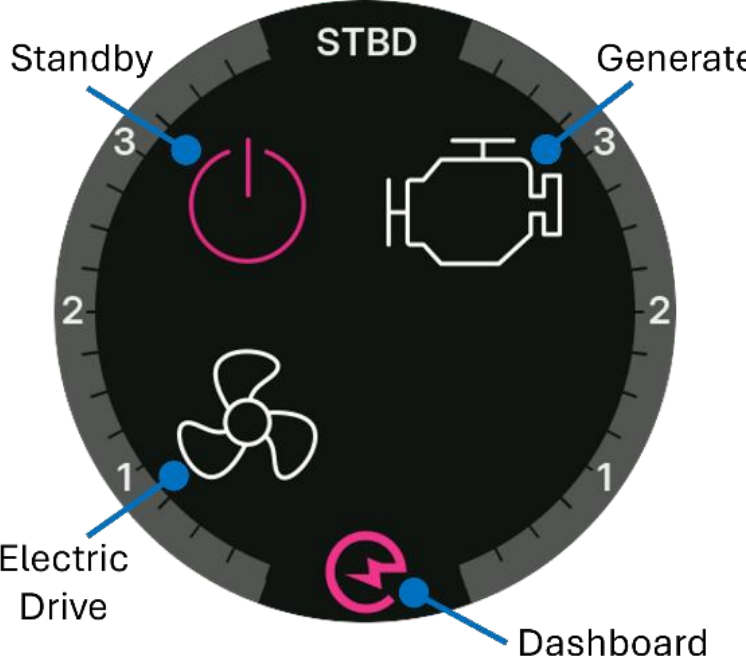
- Standby Mode. In standby mode, the E-Drive system is not active. The engine may be used for propulsion as normal.
- Generate Mode. In generation mode, the system generates power when the engine is running. The engine/gearbox can be in neutral when generating, or it can be in gear driving the boat as well as generating power.
- Drive Mode. In drive mode, the system drives the propeller using the E-Drive motor powered by energy stored in the batteries. The engine does not need to be running in drive mode, but the engine ignition must remain on to supply power to the throttle system.
Propulsion and generation are controlled using the engine throttle together with modes/settings on one or more E-Drive screens. E-Drive installations have two types of physical screens. The touchscreen is a 5" rectangular screen that is typically installed at the indoor navigation station. One or more 3" round helm screens are installed at each outdoor helm station such as the flybridge.
¶ Touchscreen
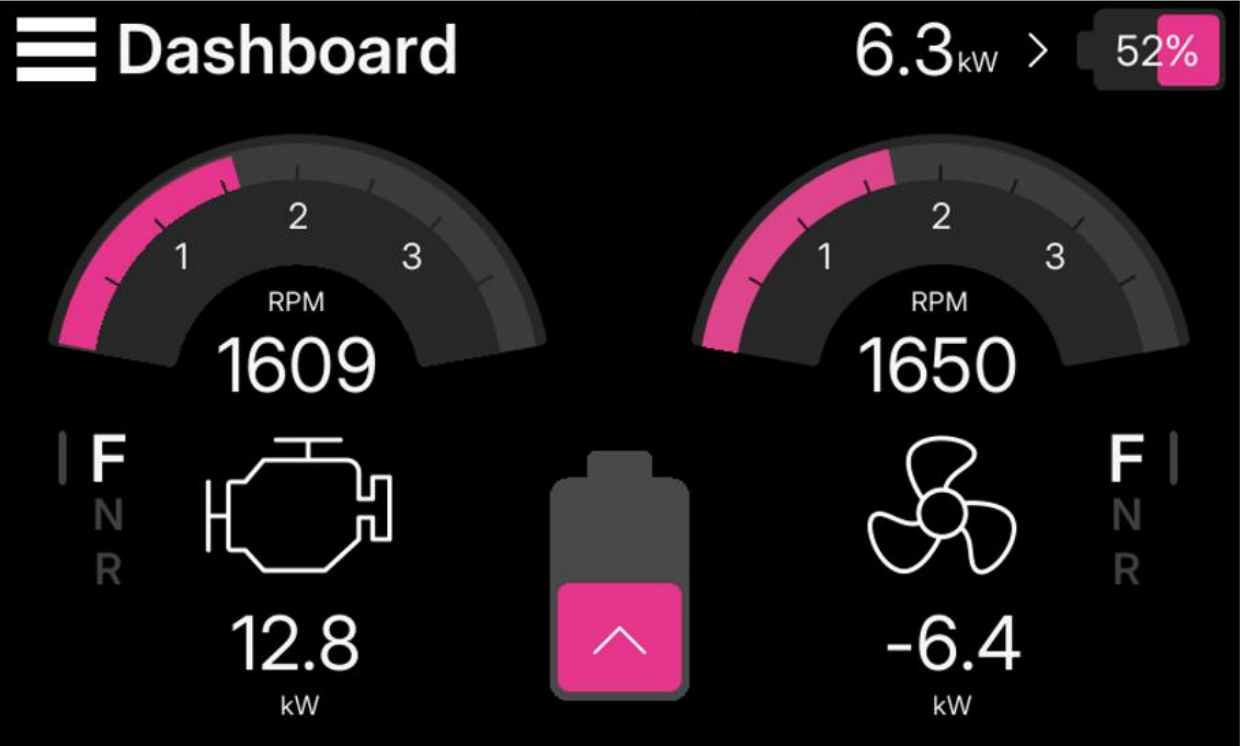
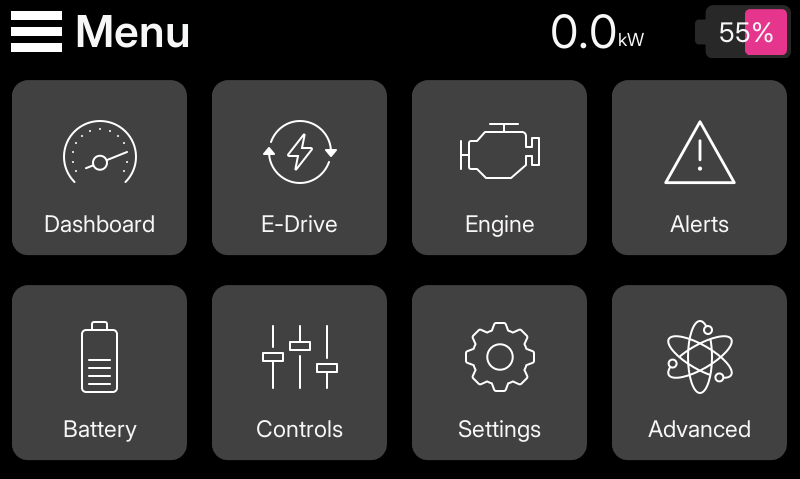
The touchscreen, typically installed at the navigation station, provides full control of all E-Drive functions, including mode selection, user configurable limits for power generation and consumption, and software updates. The menu provides access to pages described in the following sections.
¶ Main Dashboard
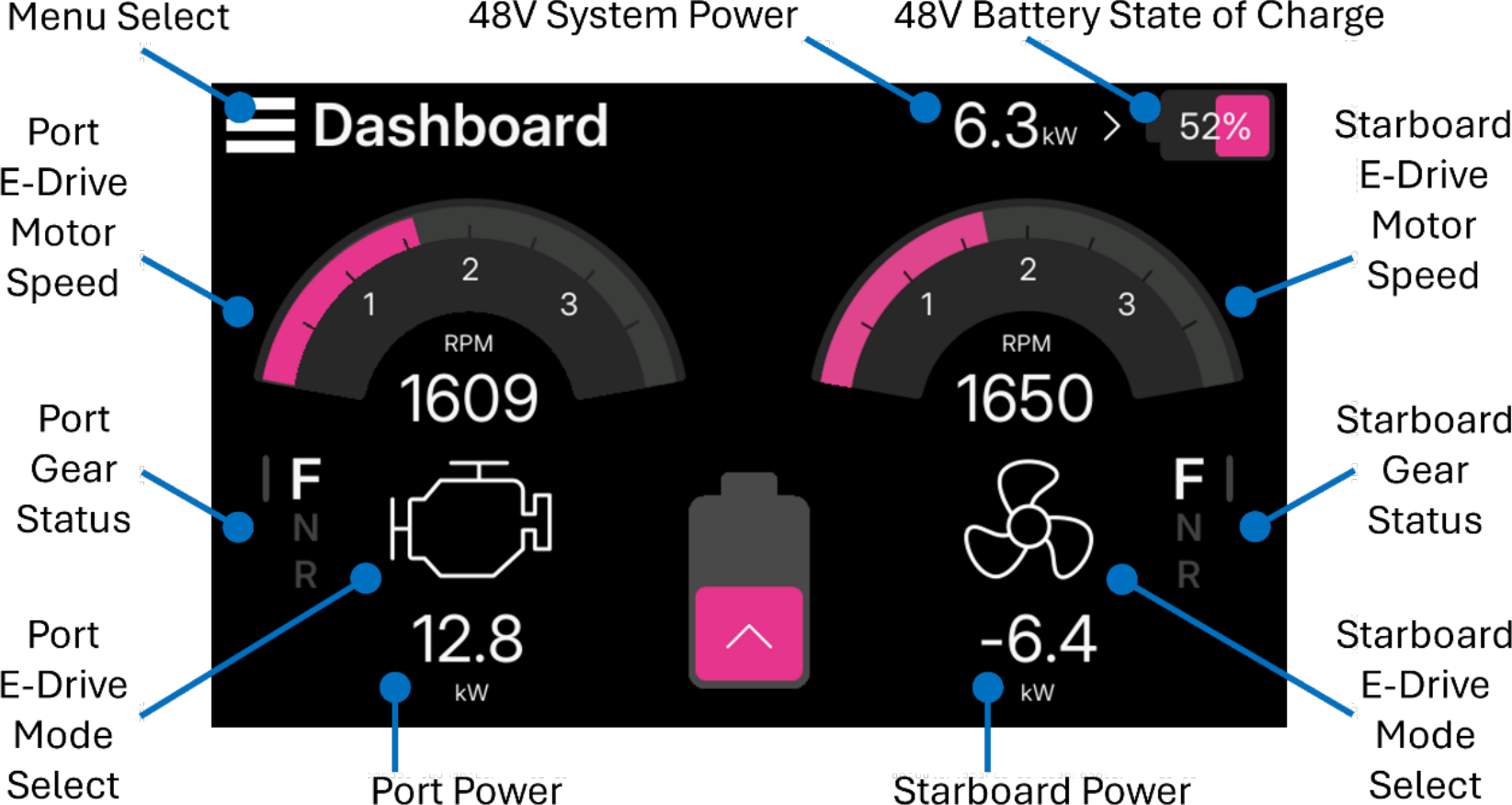
The main dashboard provides a summary view and control of the E-Drive system.
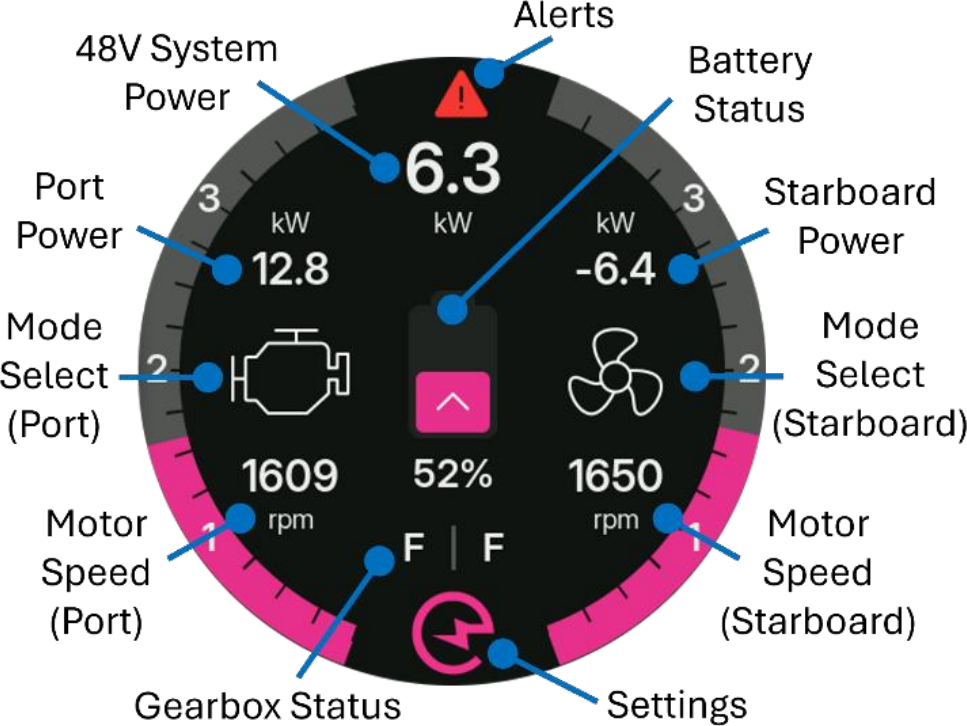
It is important to note that 48V System Power is the total power flowing into (or out of) the 48V batteries; in addition to E-Drive, this includes power generated by third party systems such as solar panels, and consumed by loads such as winches, ovens, refrigerators, and other appliances.
¶ E-Drive Dashboard
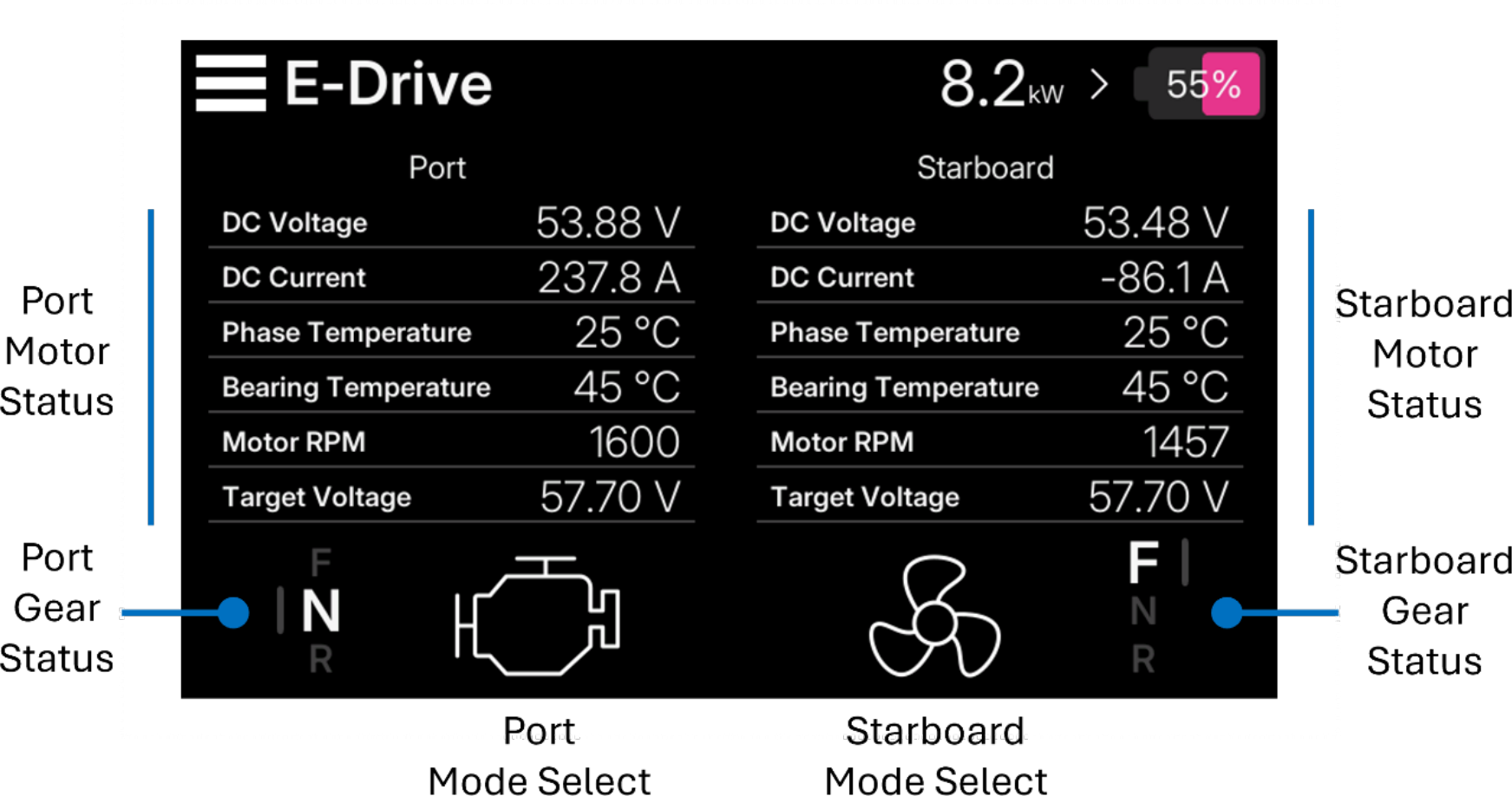
The E-Drive dashboard shows E-Drive motor and gearbox status. It also provides a way to select E-Drive mode.
¶ Engine Dashboard
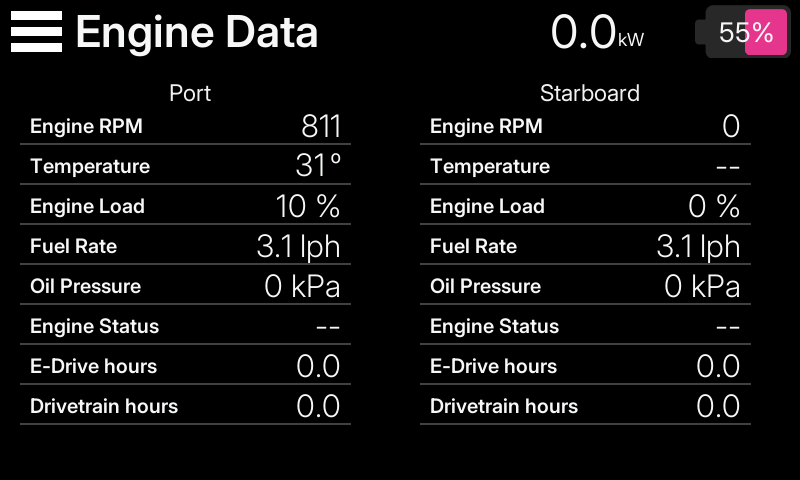
The Engine dashboard shows Engine status (reported directly by the engine control system) and E-Drive system running hours.
¶ Alerts
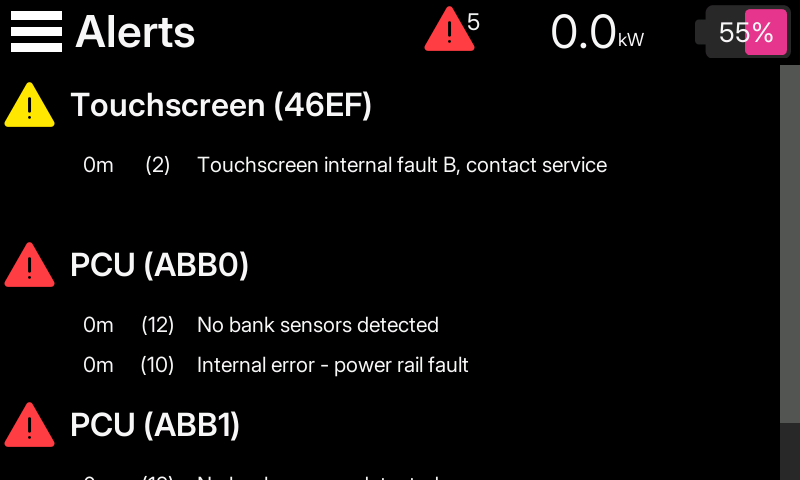
The Alerts page shows a list of current and historical alerts. It may be necessary to scroll the page to access alerts that are not visible. See the Alerts and Notifications section of this document for a detailed list of alerts. To delete historical alerts, swipe from right to left over the alert, then tap to delete.
¶ Battery Dashboard
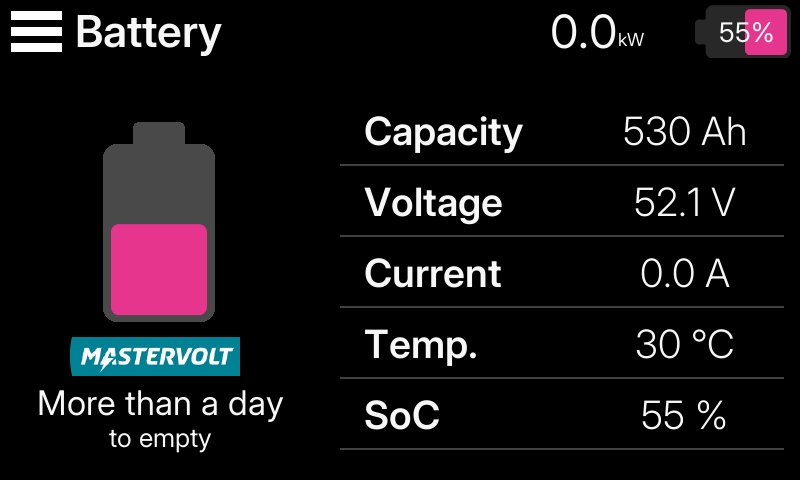
The Battery Dashboard provides a summary of the status of the primary battery bank including the voltage, current, temperature and State of Charge.
¶ Controls
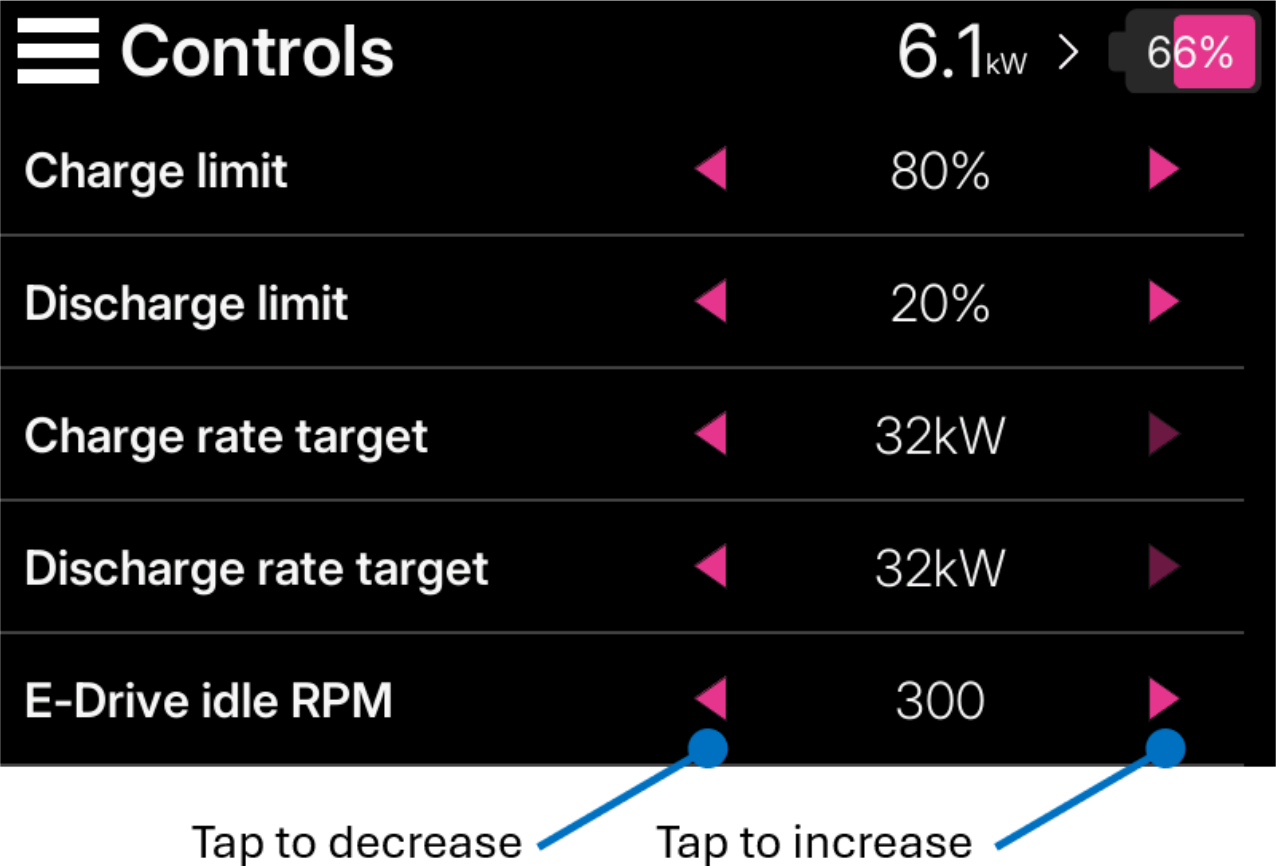
The Controls page provides a way to set E-Drive operational limits and targets including:
- Charge limit. Maximum generation charge limit (as % SoC; generation mode only).
- Discharge limit. Minimum electric drive discharge limit (as % SoC; drive mode only).
- Charge rate target. E-Drive attempts to charge the batteries at this charge rate (generation mode only).
- Discharge rate target. E-Drive attempts to discharge batteries at this rate (drive mode only).
- E-Drive idle RPM. The target idle speed of the drive shaft (drive mode only).
- Engine derate. In the event of a fouled propeller or hull reducing the engine's effective power, the system will adjust power generation accordingly
- Drive mode timeout. when enabled, the system automatically switches to Standby from Drive mode after the chosen timeout
¶ Settings
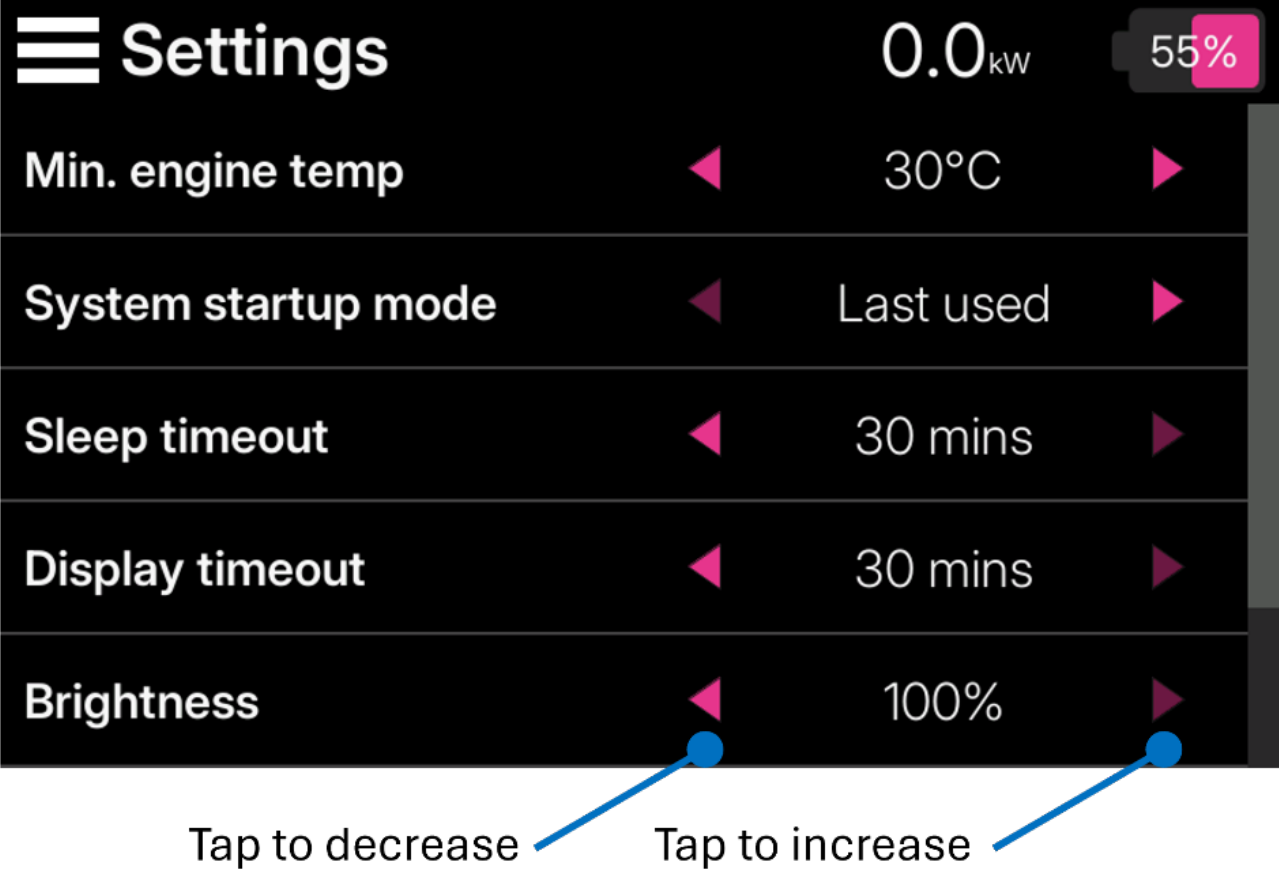
Provides a way to configure user settings and preferences.
¶ Advanced
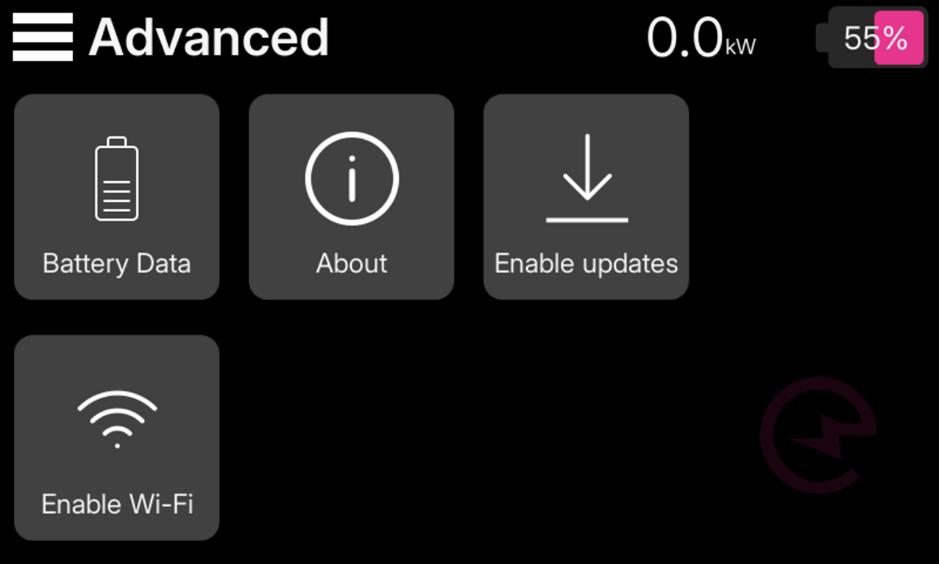
Provides access to advanced settings, including:
- Detailed battery information including BMS status and battery configuration.
- Detailed system information including device IDs, hardware versions, and software versions.
- Wi-Fi and software updates.
¶ Helm Screen
¶ Dashboard
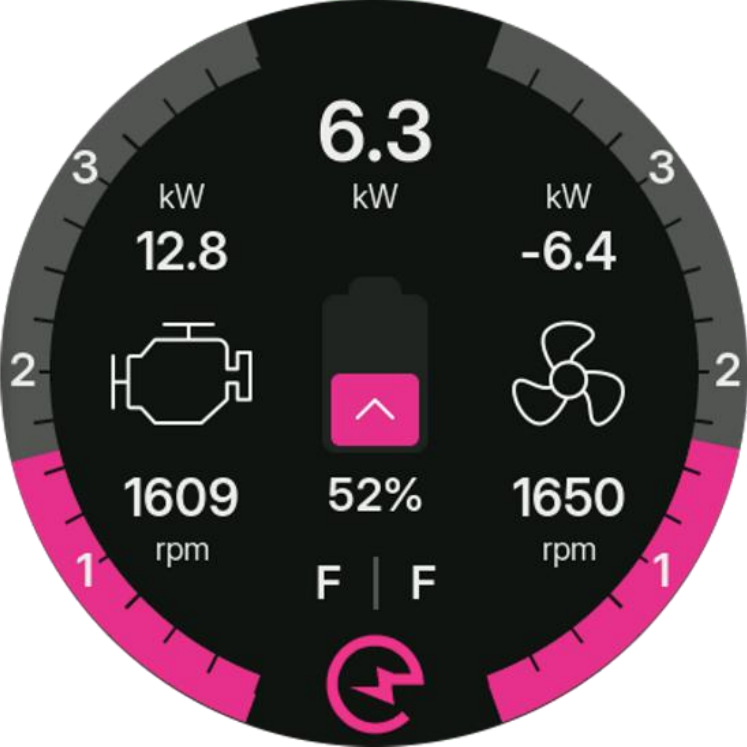
The helm screen dashboard is similar to the Touchscreen dashboard, however the full menu system is not available on the helm screen.
¶ Mode Select
To change E-Drive mode, tap the port or starboard mode icon on the main dashboard, then tap the desired mode for the hull.
¶ Settings
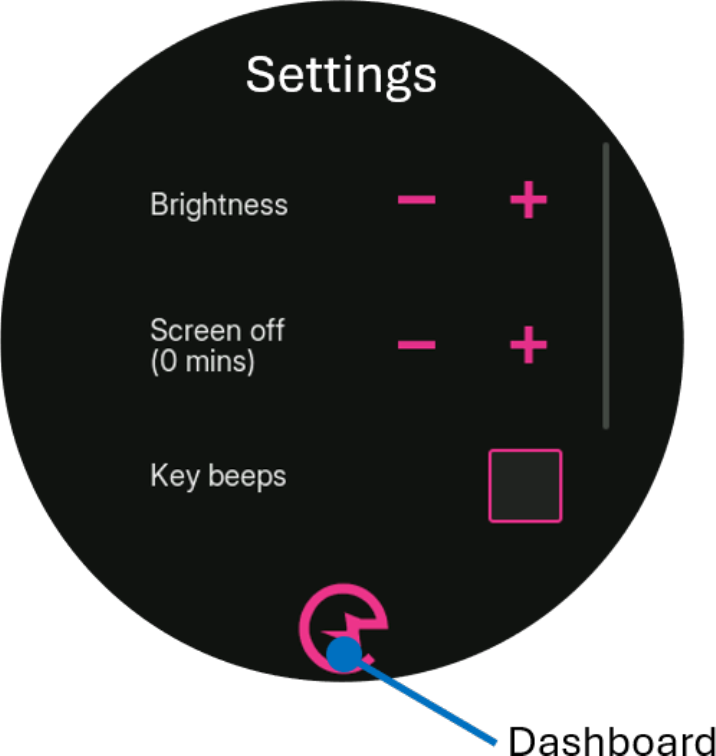
From the main dashboard, tap and hold the Integrel logo at the bottom of the screen to access user settings. These are automatically synchronised across the system. Tap the Integrel icon at the bottom of the screen to return to the dashboard.
¶ Alerts
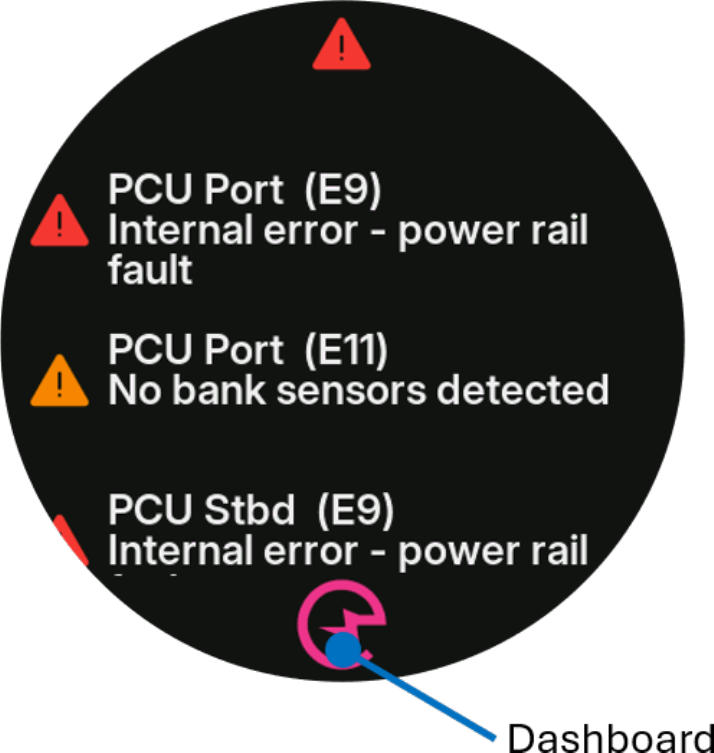
Tap the Alert triangle at the top of the screen to see active alerts; scroll to see alerts off-screen. Tap the Integrel icon at the bottom of the screen to return to the dashboard.