¶ Configuration
This page explains how to configure Integrel system settings. Each Integrel system is pre-configured at the factory, however we recommend reviewing all relevant settings BEFORE making any changes. If your system needs to be set up, a list of settings will be provided by Integrel to help guide you through the process.
Note: Most configuration changes require the Integrel Configurator software. Download from Software & Firmware.
¶ Prerequisites
To connect to the Integrel system, you will need a computer with the following specifications:
- A Windows PC or Mac with USB connection
- Integrel Serial Configuration Software Application (Download from Software & Firmware.)
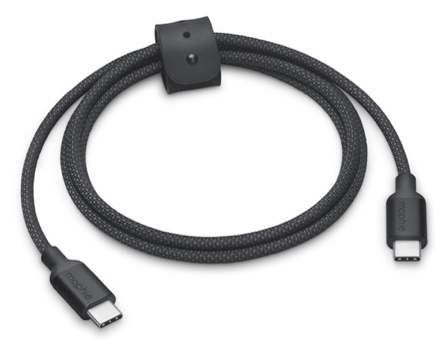
- A USB DATA cable to connect your computer to the Integrel Controller (with a USB-C connector)
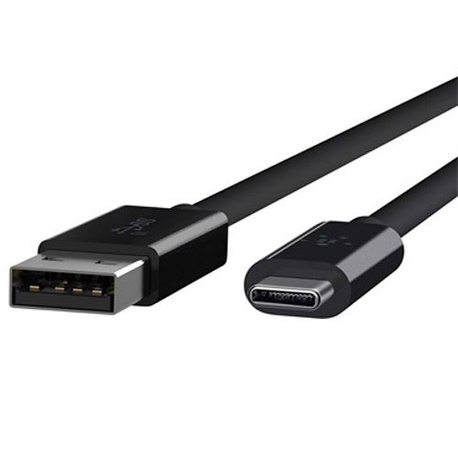
Warning: The cable must be a USB DATA cable; some cables are used for charging only.
¶ Driver and Software
For the software to function you will need to install the correct driver.
¶ Connecting to the Integrel System
The following step-by-step instructions guide you through the process of connecting your computer to the Integrel system via USB. Access to the system is via the Integrel Controller.
The Controller USB interface connector is shown below. Use a suitable USB C cable to plug from your computer to the Controller.
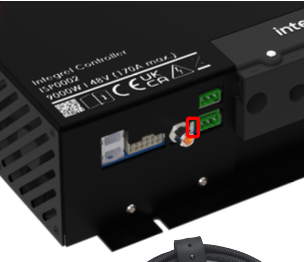
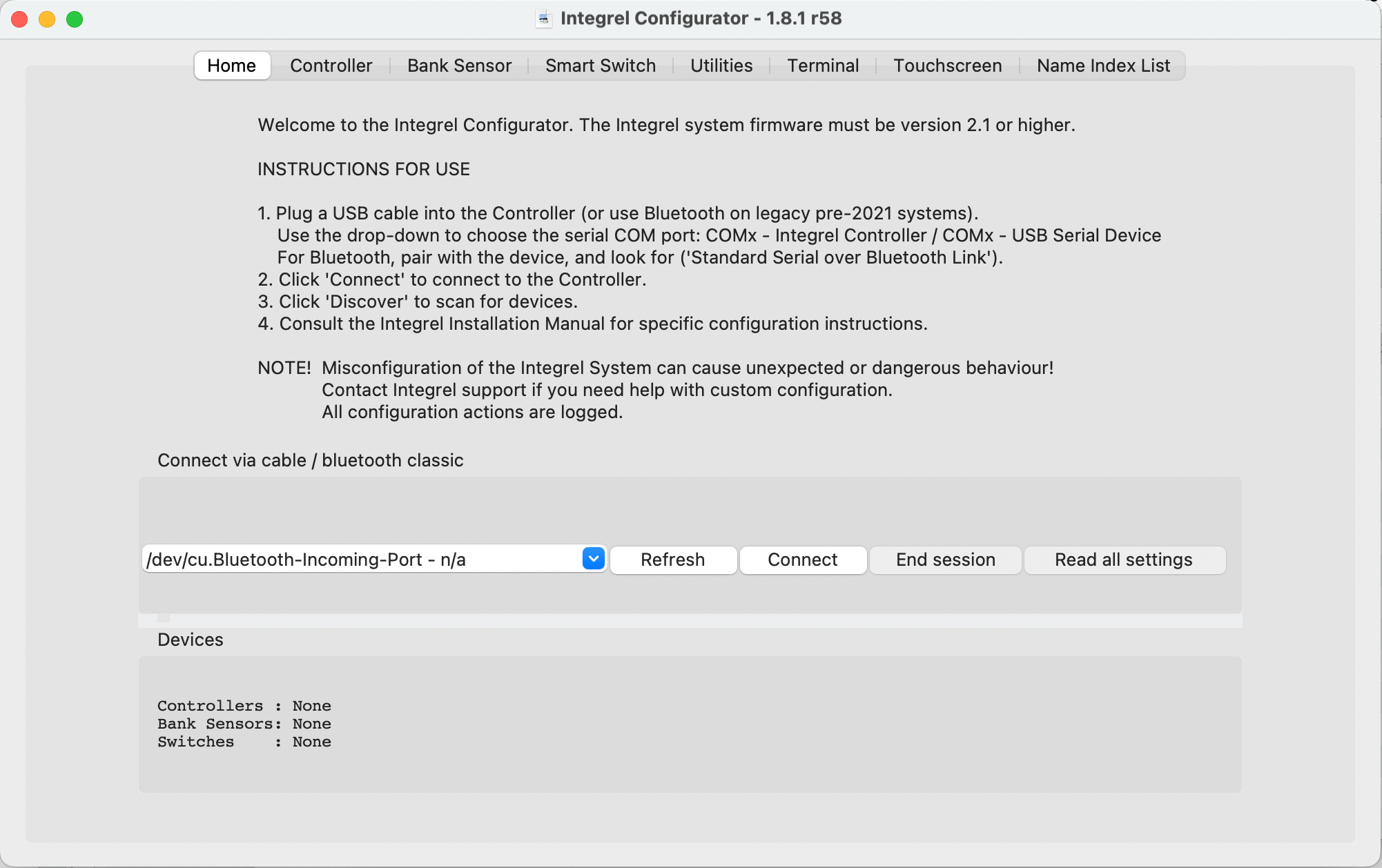
Once the Controller is connected to the computer, open the Integrel Configurator App.
¶ Integrel Configurator Application
The Configurator provides a way to interact with the Integrel system as follows:
- Scan for hardware components on the Integrel network
- Read hardware versions
- Read and write settings for each hardware component
- Update Integrel software via Wi-Fi or USB
¶ Connect to Devices
- Launch the Configurator
- The Integrel system appears automatically in the 'Connect via ...' drop-down
- Click Refresh to scan for new connections if required
- Click Connect
- Devices on the Integrel Network will appear in the 'Devices' section
Once connected, use the tabs at the top of the window to access Configurator functionality.
¶ Configurator Tabs
| Configurator Tab | Function |
|---|---|
| Home | Discover and connect to devices or end a session. |
| Controller | Read, write, load, and save Controller settings. View system data. Access NMEA2000 network diagnostics. View event logs to diagnose system faults. |
| Bank Sensor | Read, write, load, and save Bank Sensor settings. View system data. |
| Smart Switch | Read, write, load, and save Smart Switch settings. View system data. |
| Utilities | Synchronise/set the system clock. |
| Touchscreen | Provide system software updates via Wi-Fi. |
| Name Index List | Number index used to label devices on the Touchscreen; provided for reference only. |
Note: System data shown in the Controller, Bank Sensor and Smart Switch tabs is not a live feed, but a snapshot taken when a connection to the Controller was established.
¶ Choose Devices and Read Settings
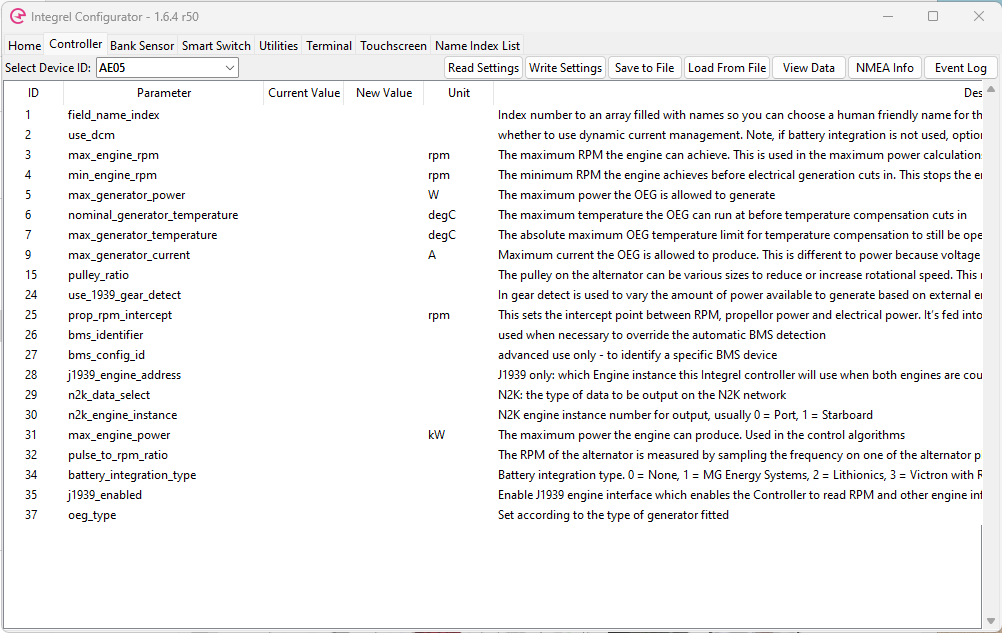
To access device settings, select the relevant device tab, then choose the device ID using the drop-down. Once a device has been selected, select Read Settings; settings appear in the 'Current Value' column.
¶ Changing Settings
Setting changes are made with guidance from Integrel. If your system needs a settings change, contact support@integrelsolutions.com and we will walk you through the process.
¶ Read Device Data
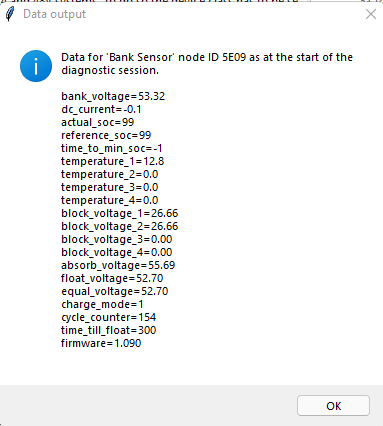
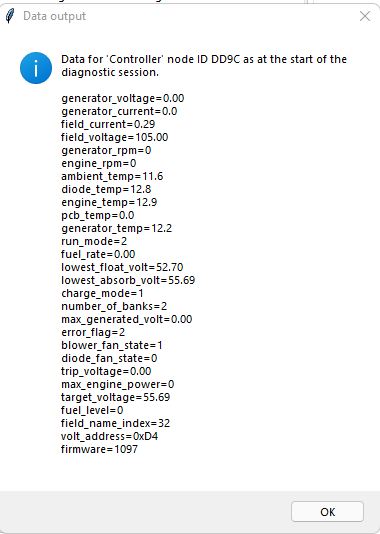
To read data captured by a device at the beginning of the session, first select the device, then select the View Data button.
A dialogue box opens showing a data snapshot. Examples for a Bank Sensor and Controller are shown below.
| Bank Sensor Snapshot | Controller Snapshot |
|---|---|
 |
 |
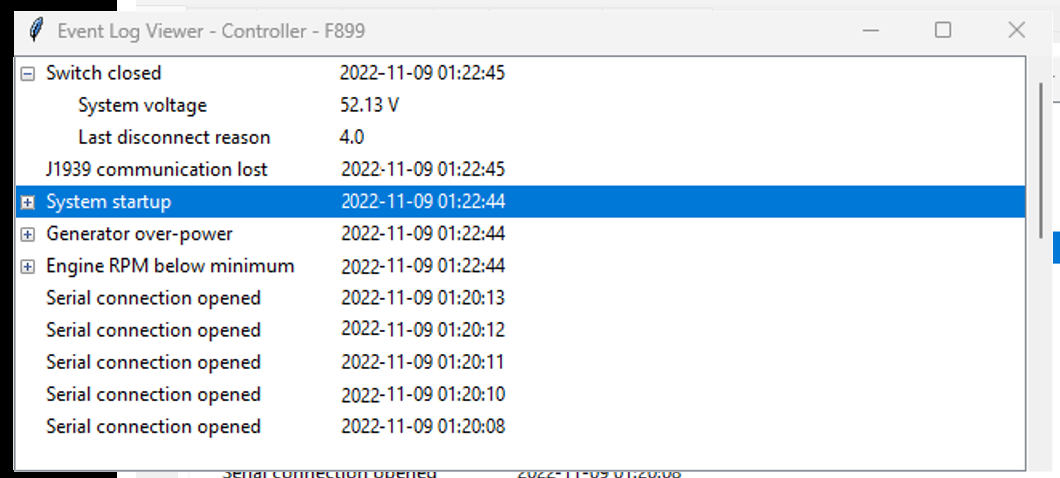
¶ Event Logs
Event logs can be used to diagnose system problems and review system behaviour.
Event logs are only available on the Controller tab. To view the Event log, click the Controller tab then click the Event Log button.